How to pause your location on Snapchat
The short answer
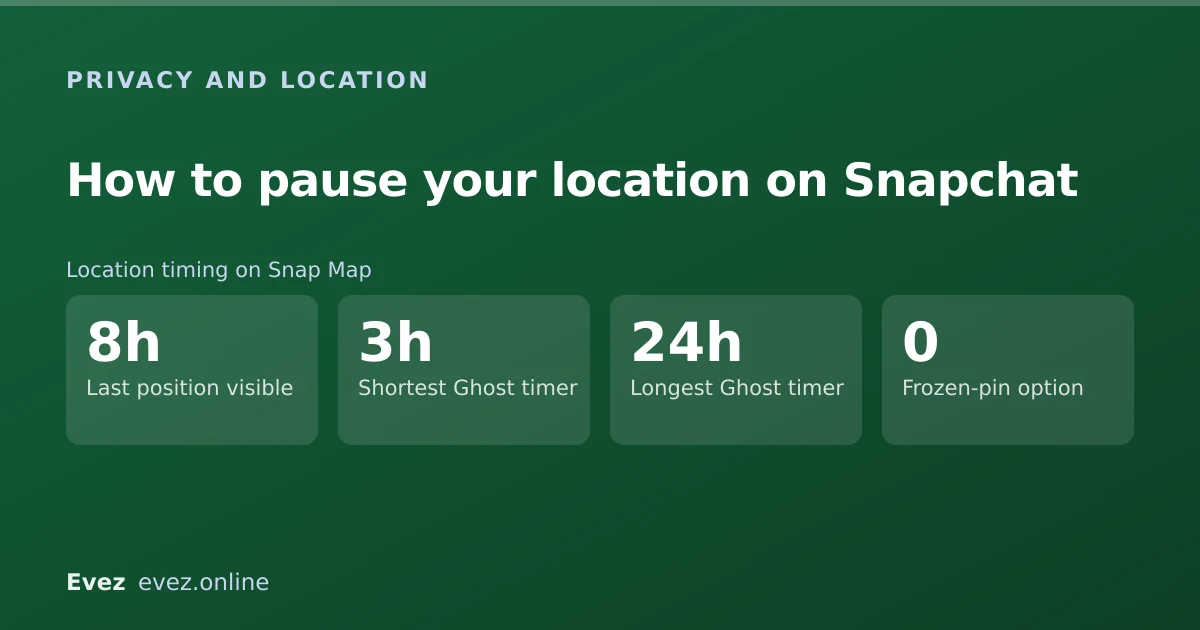
There is no pause button that freezes your Bitmoji where it is. Ghost Mode is the closest thing: it hides you from the Map entirely, and can switch itself back on after 3 or 24 hours.
Key takeaways
- Ghost Mode removes your Bitmoji from the Map for everyone. It does not freeze it at a fake or previous location — friends see nothing at all.
- You can set Ghost Mode to expire after 3 hours or 24 hours, which is the only real "pause" Snapchat offers.
- Ghost Mode does not revoke Snapchat's location permission. To stop your phone reporting location at all, change it in your iOS or Android settings.
- Your last known position stays visible to friends for up to 8 hours if you simply close the app instead of enabling Ghost Mode.
On this page
- There is no pause button, and that matters
- How to turn on Ghost Mode
- What Ghost Mode hides and what it does not
- How long your location lingers if you do nothing
- The alternative: share with a smaller list instead
- Things that do not work
- If you are doing this for safety reasons
- Frequently asked questions
- Sources
There is no pause button, and that matters
The phrase people search for is pause my location, and the mental model behind it comes from Find My or Life360, where you stop sharing and leave a last-known pin behind. Snapchat does not work that way. Its only location control is Ghost Mode, and Ghost Mode is binary: you are on the Map, or you are not on it at all.
That difference is worth understanding before you use it, because the two options send very different social signals. A frozen pin reads as "they haven't moved." A disappeared Bitmoji reads as "they turned something off." Friends who use Snap Map regularly will notice the second one.
How to turn on Ghost Mode
On iPhone and Android — the steps are identical
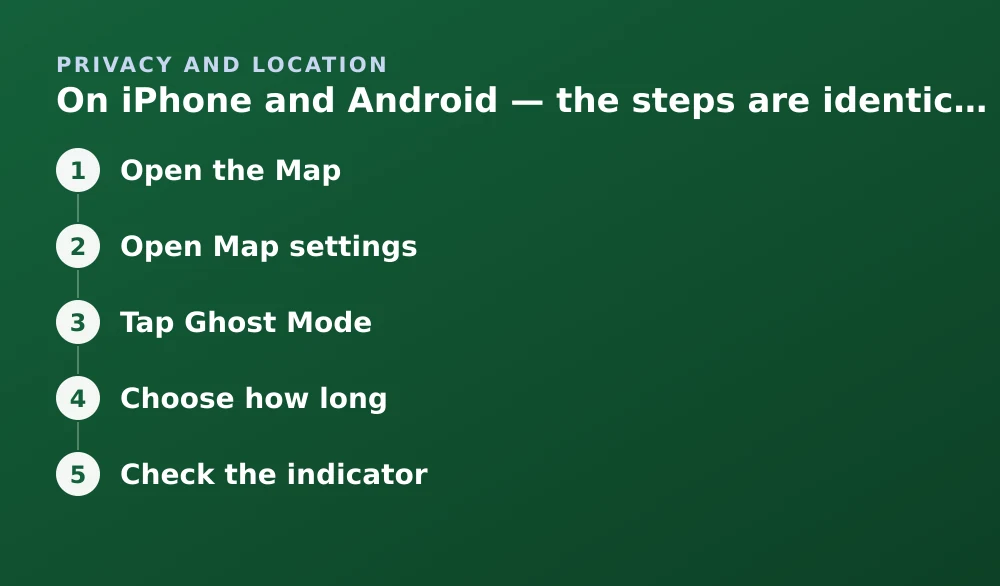
- Open the MapFrom the Camera screen, swipe right, or tap the small map pin icon in the top-left corner.
- Open Map settingsTap the settings cog in the top-right corner of the Map screen.
- Tap Ghost ModeIt sits at the top of the "Who can see my location" section.
- Choose how longPick 3 Hours, 24 Hours, or Until Turned Off. The first two are the closest thing to a pause; the third is indefinite.
- Check the indicatorA small ghost icon appears next to your Bitmoji on the Map while it is active. If you do not see it, the setting did not save — back out and re-enter the Map.
Turning it off is the same path in reverse. Your Bitmoji reappears at your current location within a minute or two of the next time you open the app, not at wherever you were when you enabled it.
What Ghost Mode hides and what it does not
This is where most of the confusion lives. Ghost Mode is a visibility setting between you and your friends. It is not a privacy setting between you and Snap Inc., and it does not touch anything outside the Map.
| Thing | Ghost Mode on | Notes |
|---|---|---|
| Your Bitmoji on friends' Maps | Hidden completely | Not frozen, not offset — absent |
| Snaps you submit to Our Story / a Map heat spot | Still visible | Submitting to the Map is a separate action from location sharing |
| Your "last active" status in Chat | Unchanged | This is a chat-level signal, not a Map one |
| Snapchat's own collection of location data | Unchanged | Governed by your OS permission, not by Ghost Mode |
| Friends you had on a custom sharing list | All hidden | Ghost Mode overrides per-friend settings while active |
| Your ability to see friends on the Map | Unchanged | You can still see everyone who shares with you |
How long your location lingers if you do nothing
A lot of people assume that closing Snapchat is enough. It is not, and the window is longer than most expect. Your last reported position stays on the Map for your friends to see for a period after you stop using the app, and only then does the Bitmoji drop off.
The practical consequence: if you want to be invisible right now, force-quitting Snapchat does not achieve it. Enable Ghost Mode explicitly.
The alternative: share with a smaller list instead
If the reason you want to pause is one specific person rather than everyone, Ghost Mode is a blunt instrument. Snapchat lets you share your location with a chosen subset of friends, which keeps the Map useful while removing whoever prompted the search.
- Open the Map and tap the settings cog.
- Under "Who can see my location," choose My Friends, Except… and select the people to exclude, or Only These Friends… and pick an allow-list.
- Neither option notifies the people you remove. From their side your Bitmoji simply stops appearing.
Things that do not work
- Airplane mode. It stops updates while it is on, but the moment you reconnect the Map catches up with your real position.
- Clearing the cache. This removes downloaded map tiles and lens assets, not your shared position. See what clearing cache actually does.
- Third-party "location freezer" apps. These rely on GPS spoofing tools. They are unreliable, they usually require developer mode or a jailbreak, and using them puts your account at risk.
- Logging out. Your last position still ages out on the normal timetable rather than vanishing immediately.
Ghost Mode lets you go off the grid on the Map. When it's on, your friends won't be able to see your location.
Snapchat Support, on what Ghost Mode does
If you are doing this for safety reasons
Ghost Mode is adequate for ordinary privacy, not wanting colleagues to see you at home, or a friend group to track a night out. It is not adequate if you are trying to hide your whereabouts from someone who may have access to your account or your device. In that situation the Map setting is the smallest part of the problem: your login sessions, your saved Map history and your device itself all matter more.
If that is your situation, change your password, review the devices signed in to your account, and consider whether the account should exist at all. The account deletion process and its thirty-day window are covered separately.
Frequently asked questions
Can I freeze my Snapchat location at a specific place?
No. Snapchat offers no supported way to pin your Bitmoji to a chosen location. Ghost Mode hides you completely rather than freezing you, and apps claiming to do otherwise rely on GPS spoofing that risks your account.
Do my friends get told when I turn on Ghost Mode?
No notification is sent. Your Bitmoji simply stops appearing on their Map. Someone who checks the Map often may notice the absence, but Snapchat does not announce it.
How long does my location stay visible after I close Snapchat?
Your last reported position can remain visible to friends for up to about eight hours after you stop opening the app. Closing the app is not an instant way to disappear — enable Ghost Mode if you need to be hidden immediately.
Does Ghost Mode stop Snapchat itself from collecting my location?
No. Ghost Mode is a visibility control for the Map only. Snapchat may still receive location data under the permission you granted at the operating-system level. To stop that, revoke location access in your iOS or Android settings.
Sources
Every source below was checked and returned a valid response at the time of the last review. Each note says which claim in this guide it supports.
- How do I turn on Ghost Mode? — Snapchat SupportSupports: The Ghost Mode toggle location and its 3-hour, 24-hour and indefinite duration options.
- How long does my location stay on Snap Map? — Snapchat SupportSupports: The window during which your last reported position remains visible after you stop using the app.
- How do I share my location with only select friends on Snapchat? — Snapchat SupportSupports: The allow-list and exclude-list alternatives to Ghost Mode described in the final section.
Related guides
Snapchat Ghost Mode and turning your location off
Three different settings all look like turning location off on Snapchat. Only one of them actually stops your phone reporting where you are.
Privacy and location · Updated
How Snap Map works, and what “last active” really means
When your Bitmoji moves, how accurate the position is, what the last-active timestamp measures, and who can see you under each setting.
Privacy and location · Updated
Is Snapchat encrypted?
Snaps are end-to-end encrypted. Text chats have not carried the same guarantee. Here is the precise boundary, and why the difference matters.
Privacy and location · Updated