How to do slow motion on Snapchat
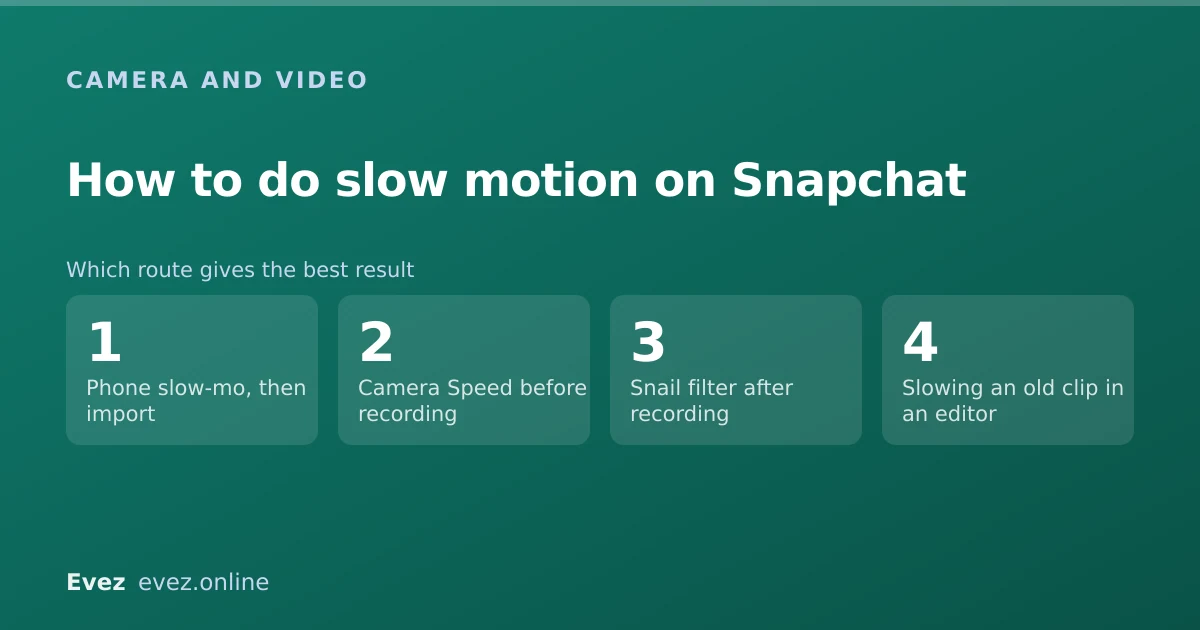
The short answer
Record, then swipe left through the filters on the preview screen until you reach the speed modifiers. The snail is slow motion, the rabbit is fast. Newer versions use a Camera Speed control instead.
Key takeaways
- Slow motion is a filter applied after recording, not a recording mode.
- Swipe left on the preview screen to reach the snail, rabbit and reverse modifiers.
- Newer versions moved this to a Camera Speed control chosen before you record.
- If neither exists in your build, slow the clip in your phone's editor and import it.
On this page
The classic method: swipe on the preview
People go looking for a slow-motion mode on the camera, find nothing, and give up. For most of Snapchat's history speed has been one of the filters you swipe through after recording, rather than something you choose before you start.
Swiping to the speed modifiers
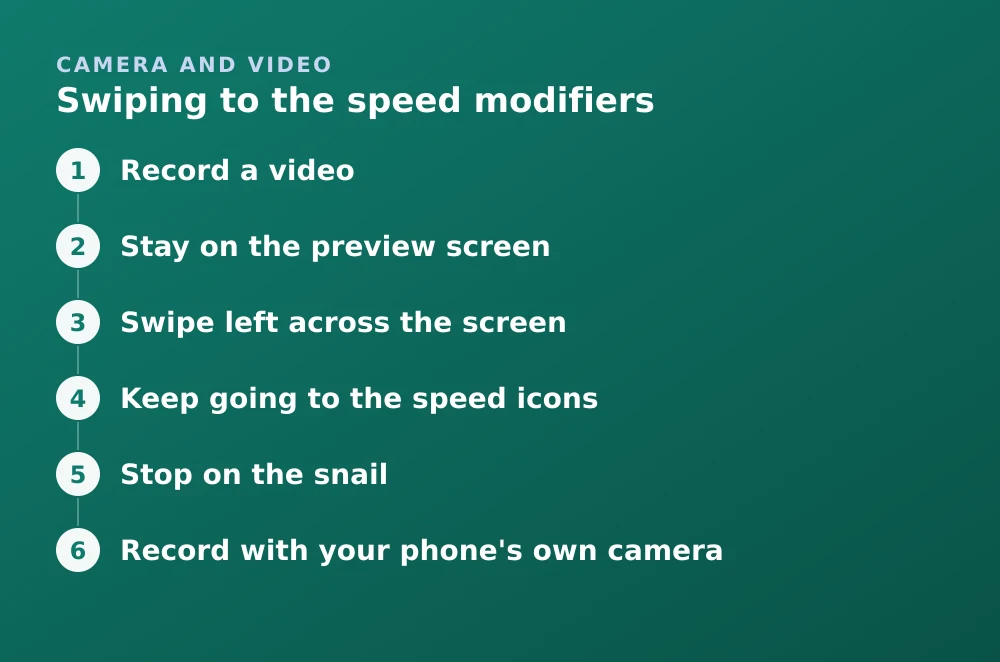
- Record a videoPress and hold the capture button. Speed modifiers apply to video only, never to photos.
- Stay on the preview screenDo not send yet.
- Swipe left across the screenYou will pass through colour filters, the time, the temperature and so on.
- Keep going to the speed iconsThe snail is slow motion, the rabbit is fast forward, and the reverse arrows play the clip backwards.
- Stop on the snailThe preview immediately plays at reduced speed. Send or save from there.
| Icon | Effect | Best for |
|---|---|---|
| Snail | Slow motion | Movement, reactions, anything fast |
| Rabbit | Fast forward | Long, dull sequences you want to compress |
| Reverse arrows | Plays backwards | Pouring, jumping, anything with an obvious direction |
If the swipe does not find them
Recent versions moved speed out of the filter carousel into a dedicated Camera Speed control, chosen before recording rather than after. This is genuinely better — the app captures at the right frame rate rather than interpolating afterwards, but it means every guide describing the swipe is wrong for those builds.
- Look on the Camera screen for a speed control in the right-hand toolbar, before you record.
- Select the slow speed option, then record as normal.
- The clip is captured at that speed rather than adjusted after the fact.
The fallback that always works
If your build has neither, slow the video down outside Snapchat and bring the result in. It is a couple of extra steps and it works on every device.
Slowing down before importing
- Record with your phone's own cameraBoth iOS and Android have a dedicated slow-motion mode that records at high frame rate — genuinely better quality than any post-hoc slowdown.
- Or slow an existing clipiOS: Photos → Edit. Android: Google Photos or your manufacturer's gallery editor.
- Save it to your camera roll
- Import it into SnapchatFrom Memories → Camera Roll, or the gallery button on the Camera screen. The route is in sending a snap from your camera roll.
What slow motion works well on
- Anything genuinely fast — a jump, a pour, a pet doing something sudden. Slowing something already slow just makes it dull.
- Reactions, where the interesting part lasts a fraction of a second.
- Short clips. Slowing a 10-second clip stretches it well past what a viewer will sit through.
- Well-lit scenes. High frame rates need light; slow motion indoors at night is noisy and grainy.
Common problems
| Symptom | Cause |
|---|---|
| No speed icons when swiping | Your version uses the Camera Speed control instead |
| Filters swipe but no speed ones appear | Filters may be disabled in settings |
| Works on photos but not video | Speed modifiers are video-only by design |
| Result looks choppy | Post-hoc slowdown with no extra frames — record in native slow motion |
| Clip is now too long to send | Slowing extends duration past the per-snap cap; trim first |
| Very dark and grainy | Not enough light for a high frame rate |
If filters are not appearing at all, check Settings → Manage → Filters is enabled. And if the underlying problem is that recording itself is awkward, hands-free recording makes framing a slow-motion shot considerably easier.
Frequently asked questions
How do you make a video slow motion on Snapchat?
Record the video, then swipe left on the preview screen until you reach the snail icon. In newer versions, use the Camera Speed control on the Camera screen before recording instead.
Why can't I find the slow motion filter on Snapchat?
Recent versions replaced the swipe-to-filter speed modifiers with a dedicated Camera Speed control chosen before recording. Check for both, and make sure filters are enabled in Settings → Manage.
Can you slow down a video you already recorded on Snapchat?
Only with the speed modifier on the preview screen, before you send. Once sent, nothing can be changed. For an older clip, slow it in your phone's editor and import the result.
Why does my slow motion look choppy?
Because slowing footage recorded at normal speed has no extra frames to work with, so frames get stretched or duplicated. Recording in your phone's native slow-motion mode captures at a high frame rate and looks smooth.
Sources
Every source below was checked and returned a valid response at the time of the last review. Each note says which claim in this guide it supports.
- How do I use Camera Speed on Snapchat? — Snapchat SupportSupports: The dedicated Camera Speed control that replaced the swipe-to-filter speed modifiers.
- How do I send photos or videos from my Camera Roll? — Snapchat SupportSupports: The import route used by the fallback method.
- What devices does Snapchat support? — Snapchat SupportSupports: That feature availability varies by device and version, explaining why the controls differ.
Related guides

How to edit a video on Snapchat
Trimming length, cropping, captions and sound, and the difference between editing before you send and editing a video already saved in Memories.
Camera and video · Updated

How to send a snap from your camera roll
Importing photos and videos from your gallery, the marker that tells recipients it was imported, and how View Once behaves with imported media.
Camera and video · Updated

How to record on Snapchat without holding the button
The built-in hands-free lock, the video timer, and the iOS and Android accessibility fallbacks for when the lock will not appear.
Camera and video · Updated