How to send a snap from your camera roll
The short answer
Swipe up from the camera to open Memories, switch to the Camera Roll tab, tap what you want and hit send. Imported media carries a visible marker, and there is no supported way to remove it.
Key takeaways
- Camera roll import goes through Memories, not the Camera screen — that is why it is hard to find.
- Recipients can tell imported media apart from something shot live.
- Most lenses do not work on imported media because they need a live camera feed.
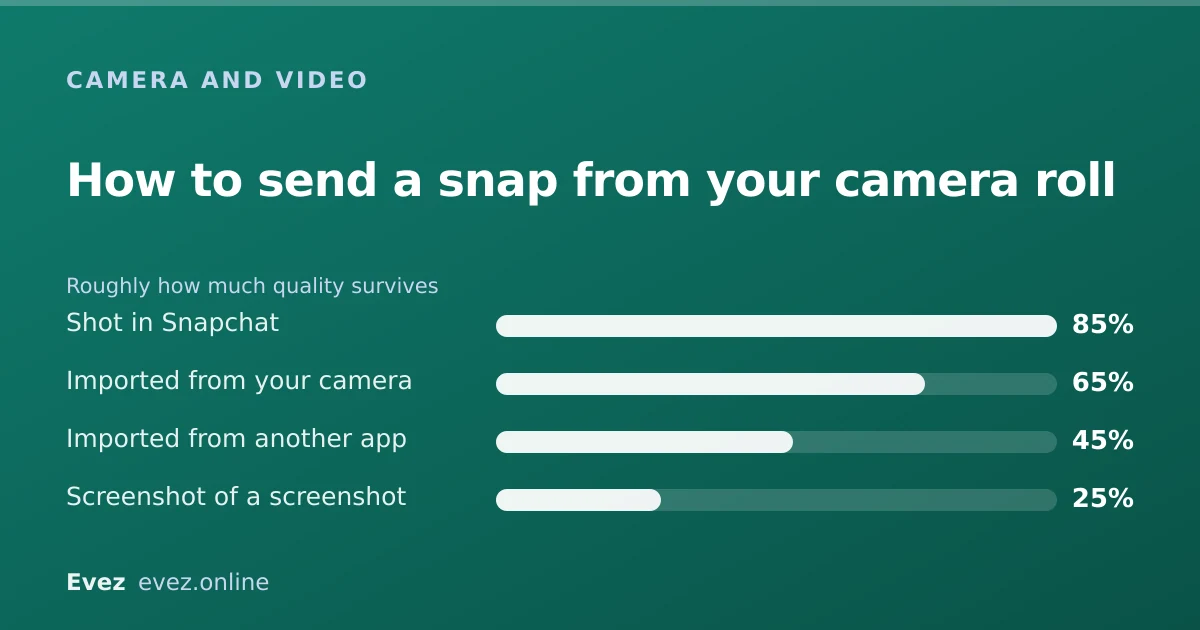
- Imported files are encoded twice, so quality is visibly worse than an in-app capture.
On this page
The route people cannot find
Every other messaging app puts gallery access right on the compose screen. Snapchat does not, which is why this feels impossible until somebody shows you where it lives. The Camera screen is for the camera, and anything already on your phone comes in through Memories, a screen most people think of as storage rather than as a place to send from.
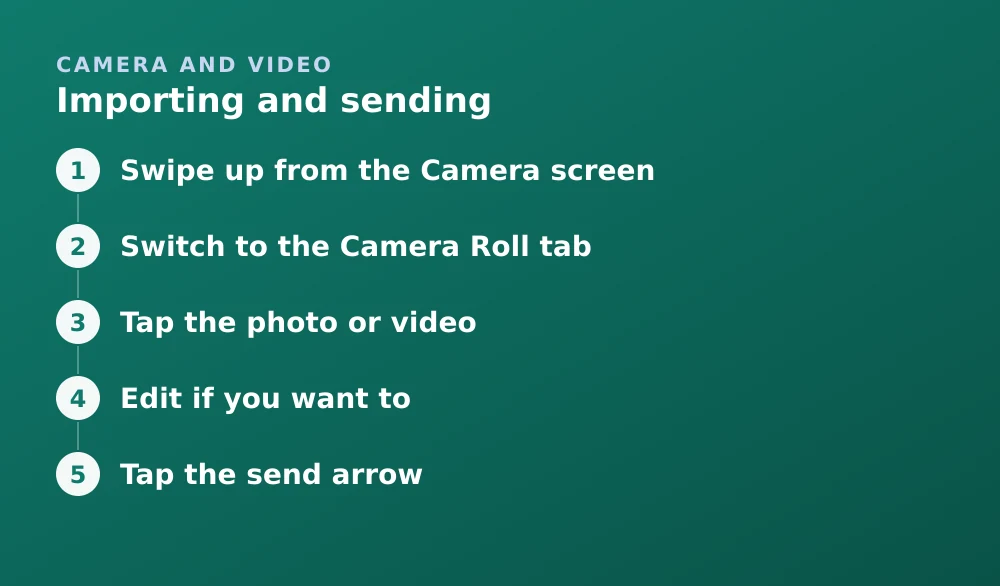
Importing and sending
- Swipe up from the Camera screenOr tap the two-cards icon just below and to the left of the shutter button. This opens Memories.
- Switch to the Camera Roll tabMemories has tabs for Snaps, Stories and Camera Roll along the top. The last one is your phone's gallery.
- Tap the photo or videoPress and hold instead to select several at once.
- Edit if you want toYou get the caption, sticker and drawing tools. Lenses mostly will not be available.
- Tap the send arrowChoose recipients exactly as you would for a live snap.
The marker, and why it exists
Imported media is visually distinguishable from something shot live. Snapchat has used a white border and a Memories-style frame for this at various times, and the exact treatment has changed between versions, but the principle has been constant: the recipient can tell.
This is deliberate. Snapchat's whole premise is that a snap is a moment happening now. If imported content were indistinguishable, that premise collapses. So there is no setting to disable the marker, and no supported workaround.
| Shot in the app | Imported | |
|---|---|---|
| Visible marker | None | Yes |
| Lenses available | Full range | Very limited |
| Filters and geofilters | Yes | Some, not location ones |
| Times encoded | Once | Twice |
| Counts toward Snapscore | Yes | Yes |
| Can post to a story | Yes | Yes |
View Once and imported media
View Once works on imported media the same way it works on anything else — the recipient gets one look and replay is restricted. What it does not do is change anything about detectability.
- Screenshots still notify you. Same as any snap.
- Screen recording is still flagged on most current devices, though less reliably — see how capture detection varies.
- A second phone photographing the screen is undetectable. Always. View Once does not change this.
- The import marker is still shown. View Once does not hide where the media came from.
Quality
An imported file has already been compressed once by whatever produced it. Snapchat then re-encodes it for transfer. Two rounds of lossy compression is visibly worse than one, and it is worst on anything with fine detail or gradients.
- Import the original, not a version that has been through WhatsApp or Instagram first.
- Send over Wi-Fi. Snapchat adapts its encode to available bandwidth.
- Do not screenshot to crop. Use a real editor; a screenshot throws away resolution before Snapchat even sees the file.
- Shoot in the app when quality matters more than convenience — covered in recording video on Snapchat.
When import fails
| Symptom | Cause |
|---|---|
| Camera Roll tab is empty | Photos permission denied or set to Limited |
| Some photos missing | iOS "Limited" access — only selected photos are visible |
| Video will not import | Unsupported codec, or longer than the per-snap cap |
| Import is very slow | Large file, or iCloud photo not downloaded to the device |
| No lenses available | Expected — lenses need a live camera |
| Quality looks terrible | Double encoding; import the original file |
If you are importing in order to keep a copy of something, note that saving and sending are separate actions — see saving snaps to your camera roll and sending video.
Frequently asked questions
How do I send a photo from my camera roll on Snapchat?
Swipe up from the Camera screen to open Memories, switch to the Camera Roll tab, tap the photo, then tap the send arrow. Gallery media does not go through the Camera screen.
Can people tell if you send a snap from your camera roll?
Yes. Imported media carries a visible marker distinguishing it from something shot live in the app. There is no setting to disable it and no supported workaround.
Why can't I use lenses on an imported photo?
Face and world lenses need a live camera feed to track against, so they are not offered on imported media. A few overlay-style effects work, but most do not.
Why is my Camera Roll tab empty in Snapchat?
Almost always the photo permission. On iOS, "Limited" access shows only the photos you specifically selected. Set it to All Photos in Settings → Snapchat → Photos.
Sources
Every source below was checked and returned a valid response at the time of the last review. Each note says which claim in this guide it supports.
- How do I send photos or videos from my Camera Roll? — Snapchat SupportSupports: The Memories → Camera Roll route and how imported media is sent.
- How do I import Snaps from my Camera Roll into Memories? — Snapchat SupportSupports: That imported media enters Snapchat through Memories and is stored there.
- How do I save a Snap to Memories and Camera Roll? — Snapchat SupportSupports: The relationship between the camera roll, Memories and the save destination setting.
Related guides

How to send a video on Snapchat
Sending a video you recorded, sending one from your camera roll, sending as a chat attachment instead of a snap, and why the quality drops.
Camera and video · Updated

How to save snaps to your camera roll
Change the default save destination, bulk-export your whole Memories archive, and stop Snapchat filling your phone when you don't want it to.
Memories and storage · Updated

How to record a video on Snapchat
Recording a video snap end to end, plus the real numbers: the per-snap length cap, how longer recordings split, and what changes for Memories.
Camera and video · Updated