How to record on Snapchat without holding the button
The short answer
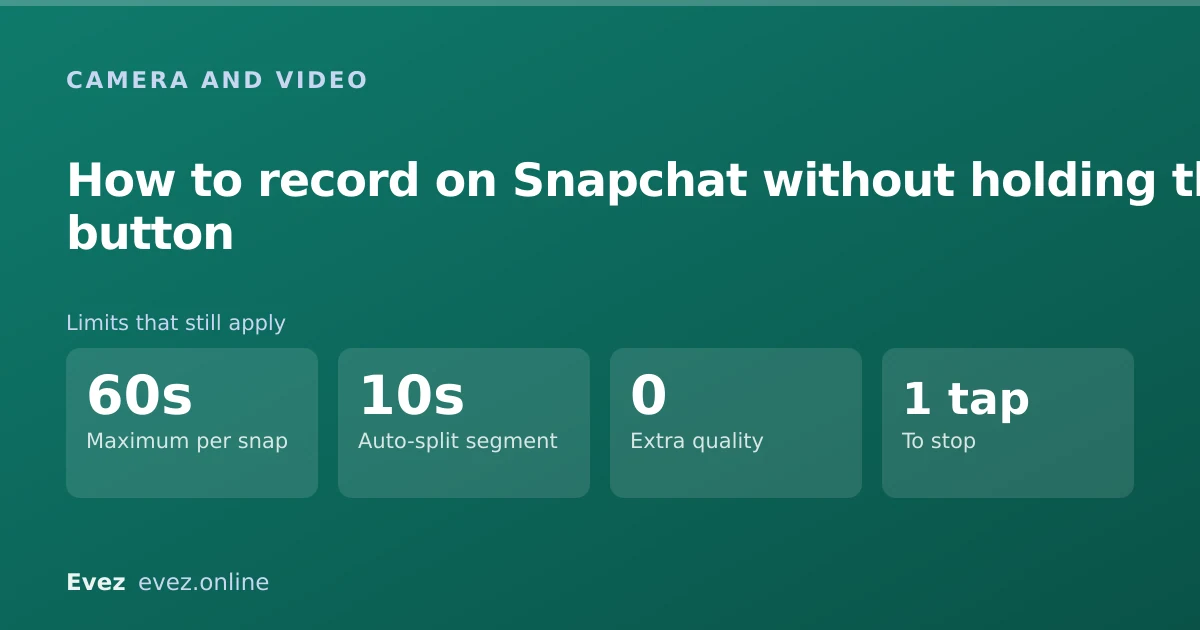
Hold the capture button, then slide your finger onto the small lock icon that appears and let go. Recording carries on hands-free until you tap again. No lock icon? Use the timer instead.
Key takeaways
- Slide to the lock icon while recording — do not lift your finger before you reach it.
- The video timer is the alternative when the lock is unavailable in your version.
- iOS AssistiveTouch and Android Accessibility Menu both provide a hold-free fallback.
- The 60-second cap still applies; hands-free changes how you record, not how long.
On this page
The lock method
Your finger gets tired, or it slips, and the recording stops halfway through the bit you actually wanted. Snapchat does have a built-in hands-free mode, hidden behind a gesture almost nobody discovers by accident. It is not in settings. It appears only while you are already recording.
The gesture, precisely
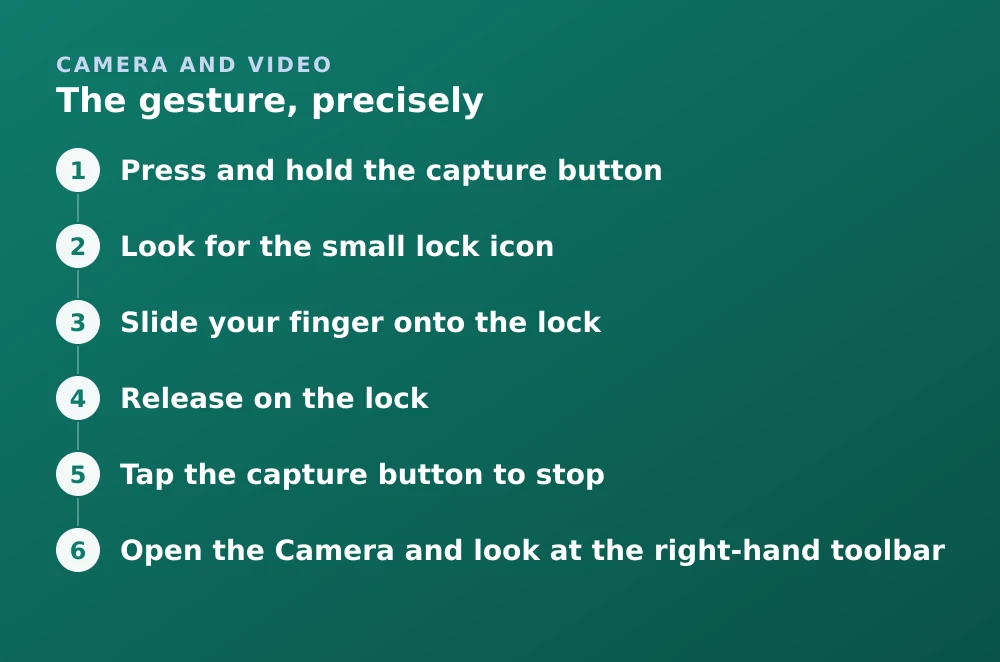
- Press and hold the capture buttonRecording starts as normal. Keep your finger down.
- Look for the small lock iconIt appears beside or just above the capture button a moment after recording begins.
- Slide your finger onto the lockDo not lift first. Slide across, staying in contact with the screen the whole way.
- Release on the lockRecording continues without your finger. You can now put the phone down or use both hands.
- Tap the capture button to stopA single tap ends the recording and takes you to the preview screen.
If there is no lock icon
The hands-free lock has moved between versions and is not present in every build. If a careful slide produces nothing, the feature probably is not there, and there is a documented alternative.
The video timer
- Open the Camera and look at the right-hand toolbarFind the timer icon among the tools down the right edge.
- Tap it and choose a durationThe timer counts down and then records for the length you set.
- Position the phoneThe countdown gives you time to prop it up and step back.
- It stops on its ownWhich is the difference from the lock — a fixed duration rather than an open-ended recording.
| Hands-free lock | Video timer | |
|---|---|---|
| Recording length | Open-ended, up to the cap | Fixed, set in advance |
| Needs a gesture | Yes — a precise slide | No — just tap |
| Available in all versions | No | More consistently |
| Good for | Reacting to something | Setting up a shot |
| Stop control | Tap the button | Automatic |
The operating-system fallbacks
If neither in-app option works, both iOS and Android can hold a touch for you. This is genuinely reliable, works regardless of Snapchat version, and is the answer for anyone who cannot comfortably hold a button for accessibility reasons.
iPhone — AssistiveTouch
- Settings → Accessibility → Touch → AssistiveTouchTurn it on. A floating button appears on screen.
- Open Custom ActionsOr create a new custom gesture under Create New Gesture.
- Record a long pressTouch and hold on the recording screen for a few seconds, then save it with a name.
- Use it in SnapchatTap the AssistiveTouch button, choose your gesture, and place it over the capture button. iOS holds the touch for you.
Android — Accessibility Menu
- Settings → Accessibility → Accessibility MenuTurn it on. Availability varies by manufacturer.
- Check for a touch-and-hold assist optionSome builds expose this directly; others require a third-party accessibility service.
- Alternatively, use the timerOn Android builds without the assist, the in-app video timer is the more reliable route.
What hands-free does not change
The length rules are the same either way, and are covered in recording video on Snapchat.
Things that do not work
- Volume-button recording. The volume keys trigger the shutter for photos on some devices, but do not start a hands-free video recording.
- Third-party apps promising hands-free capture. These require a modified Snapchat client and get accounts locked — see why that happens.
- Voice control. There is no voice command to start recording in Snapchat.
- Recording elsewhere and importing. This works but is a different thing — the result is marked as imported, as covered in sending from your camera roll.
Frequently asked questions
How do you record on Snapchat without holding the button?
Press and hold the capture button to start recording, then slide your finger to the small lock icon that appears and release. Recording continues hands-free until you tap the button again.
Why is there no lock icon when I record on Snapchat?
The hands-free lock is not present in every app version and has moved between builds. Use the in-app video timer instead, or an operating-system accessibility gesture such as iOS AssistiveTouch.
Can I record hands-free on Snapchat using accessibility settings?
Yes. On iPhone, create a custom long-press gesture in Accessibility → Touch → AssistiveTouch and apply it to the capture button. iOS holds the touch for you regardless of Snapchat version.
Does hands-free recording let me record longer snaps?
No. The maximum length per snap is unchanged, and longer recordings still split into segments. Hands-free changes only how you hold the button.
Sources
Every source below was checked and returned a valid response at the time of the last review. Each note says which claim in this guide it supports.
- How do I use the Video Timer? — Snapchat SupportSupports: The video timer as an alternative to holding the capture button.
- How do I add a voiceover to a video Snap? — Snapchat SupportSupports: The video snap recording and preview flow described in the steps.
- What devices does Snapchat support? — Snapchat SupportSupports: That feature availability varies by device and app version, explaining the missing lock icon.
Related guides

How to record a video on Snapchat
Recording a video snap end to end, plus the real numbers: the per-snap length cap, how longer recordings split, and what changes for Memories.
Camera and video · Updated

How to send a snap from your camera roll
Importing photos and videos from your gallery, the marker that tells recipients it was imported, and how View Once behaves with imported media.
Camera and video · Updated

How to edit a video on Snapchat
Trimming length, cropping, captions and sound, and the difference between editing before you send and editing a video already saved in Memories.
Camera and video · Updated