How to record a video on Snapchat
The short answer
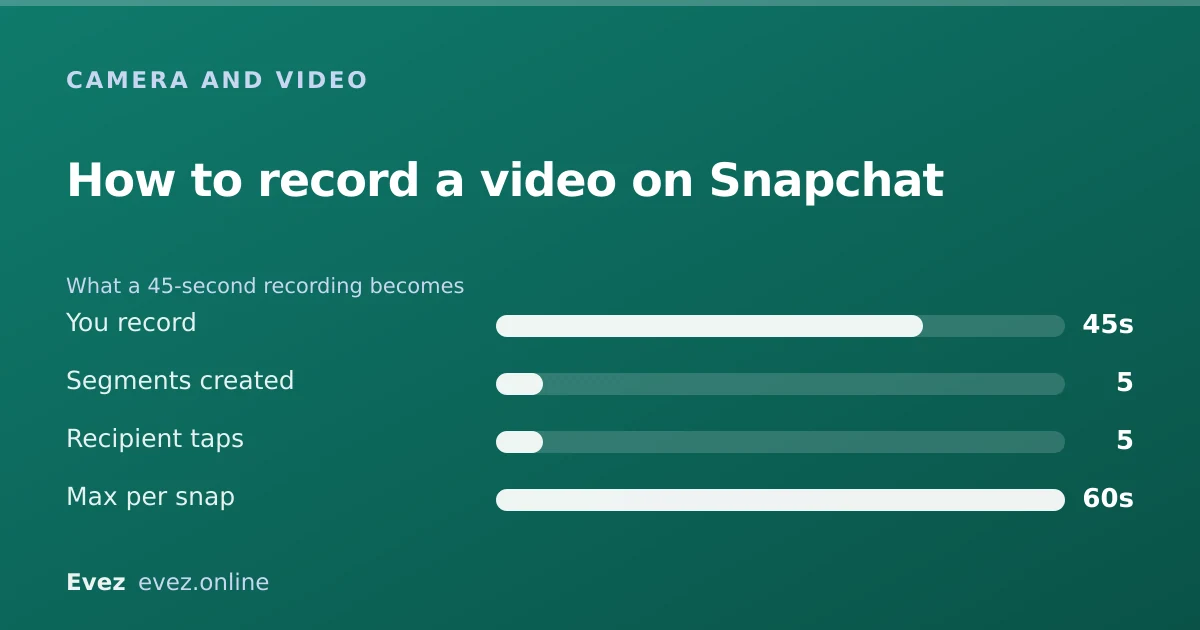
Press and hold the capture button. It records while you hold, up to 60 seconds. Keep holding and Snapchat splits it into segments that send as a sequence. Let go to reach the preview screen.
Key takeaways
- Hold the capture button to record; a single tap takes a photo instead.
- Sixty seconds is the cap for one snap; longer recordings split into segments.
- Each segment is sent and viewed separately by the recipient.
- Save before sending if you want to keep it — sending alone does not save it.
On this page
Recording
The basic flow
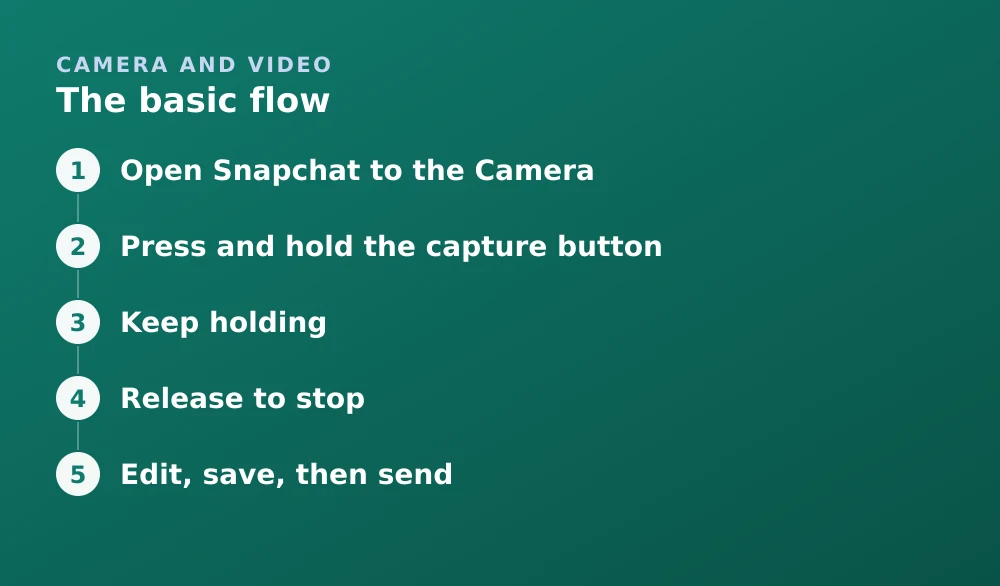
- Open Snapchat to the CameraThis is the default screen when the app opens.
- Press and hold the capture buttonThe large circle at the bottom. A ring fills around it to show progress toward the length limit.
- Keep holdingA single tap takes a photo. This is the most common reason people end up with a still when they wanted video.
- Release to stopYou go straight to the preview screen with the video looping.
- Edit, save, then sendThe order matters — saving after sending is not possible for a snap you have already sent.
How long a video snap can be
Holding a button to record feels natural for about five seconds and increasingly silly after thirty. Two things decide how that goes: the cap on a single snap, and what happens when you keep holding past it.
| Context | Limit | What happens at the limit |
|---|---|---|
| A single video snap | 60 seconds | Splits into further segments |
| One segment when split | 10 seconds | Next segment starts automatically |
| Total continuous recording | 60 seconds | Recording stops |
| Imported from camera roll | Trimmed to fit | You choose which portion |
| Saved to Memories | Full recording kept | Segments stored together |
Before you send
The preview screen is where everything useful happens, and it is easy to blow past it. Once a snap is sent, none of this is available.
- Save it. The download arrow, bottom-left. Where it goes depends on your setting — see saving videos on Snapchat.
- Trim it. Cut the dead time at either end rather than making people sit through it.
- Mute it. The speaker icon removes audio entirely, which is often the right call for a noisy clip.
- Add a caption. The T tool. Text on a video snap does more work than it does on a photo, because viewers cannot pause.
- Loop it. For short clips, looping means the viewer sees it more than once within the timer.
Why the quality drops
Snapchat re-encodes video aggressively so that snaps transfer quickly on a poor connection. That is a deliberate trade and there is no quality setting to turn it up.
- Record in the app rather than importing. Importing an already-compressed file means it is encoded twice, and the second pass is visibly worse.
- Record in good light. Compression handles a bright, low-noise image far better than a dim, grainy one — this makes more difference than anything else on this list.
- Keep the lens clean. A smeared front camera looks like compression damage and is not.
- Use Wi-Fi. Snapchat adapts to available bandwidth, so a weak connection produces a worse encode.
- Save the original. The copy in your camera roll is better than the version the recipient sees.
Common problems
| Symptom | Usual cause |
|---|---|
| Photo instead of video | Tapped rather than held |
| Recording stops immediately | Finger lifted, or storage full |
| No sound on the recording | Microphone permission denied |
| Video is upside down | Rotation lock plus how the phone was held |
| Recording will not start | Camera permission denied, or another app has the camera |
| Very short maximum length | Free storage almost exhausted |
The permission rows are the ones worth checking first — a denied microphone permission produces silent video that looks like a Snapchat bug. If storage is the problem, reducing Snapchat's footprint frees space quickly.
For trimming and editing after the fact, see editing a video on Snapchat.
Frequently asked questions
How do you record a video on Snapchat?
Press and hold the capture button on the Camera screen. A single tap takes a photo instead, which is why people often end up with a still. Release to stop and go to the preview screen.
How long can a Snapchat video be?
Sixty seconds for a single video snap. Recording past that splits the video into segments of roughly ten seconds each, which send as a sequence the recipient taps through.
Why does my Snapchat video have no sound?
Almost always a denied microphone permission. Check iOS Settings → Snapchat → Microphone, or Android Settings → Apps → Snapchat → Permissions.
Does sending a Snapchat video save it?
No. Sending and saving are separate. Tap the download arrow on the preview screen before sending, or the video is gone once it has been viewed.
Sources
Every source below was checked and returned a valid response at the time of the last review. Each note says which claim in this guide it supports.
- My video Snaps don't have sound — Snapchat SupportSupports: That missing audio on a video snap is a permissions issue rather than a recording fault.
- How do I make my video Snap loop or bounce? — Snapchat SupportSupports: The looping option available on the preview screen before sending.
- How do I save a Snap to Memories and Camera Roll? — Snapchat SupportSupports: That saving is a separate action from sending and must happen on the preview screen.
Related guides

How to record on Snapchat without holding the button
The built-in hands-free lock, the video timer, and the iOS and Android accessibility fallbacks for when the lock will not appear.
Camera and video · Updated

How to edit a video on Snapchat
Trimming length, cropping, captions and sound, and the difference between editing before you send and editing a video already saved in Memories.
Camera and video · Updated

How to save videos on Snapchat
Saving a video before you send it, saving from Memories, saving a video someone sent you, and where the line sits on saving other people's snaps.
Memories and storage · Updated