How to send a video on Snapchat
The short answer
Hold the capture button to record, then tap the blue arrow, pick recipients and send. For video already on your phone, go through Memories and the Camera Roll tab. Imported clips are marked as imported.
Key takeaways
- The blue arrow is Send. Choose recipients, then send again to confirm.
- Camera roll video goes through Memories rather than the Camera screen.
- Imported video carries a visible marker showing it was not shot live.
- Quality drops because Snapchat re-encodes everything; importing encodes it twice.
On this page
Sending a video you just recorded
The direct route
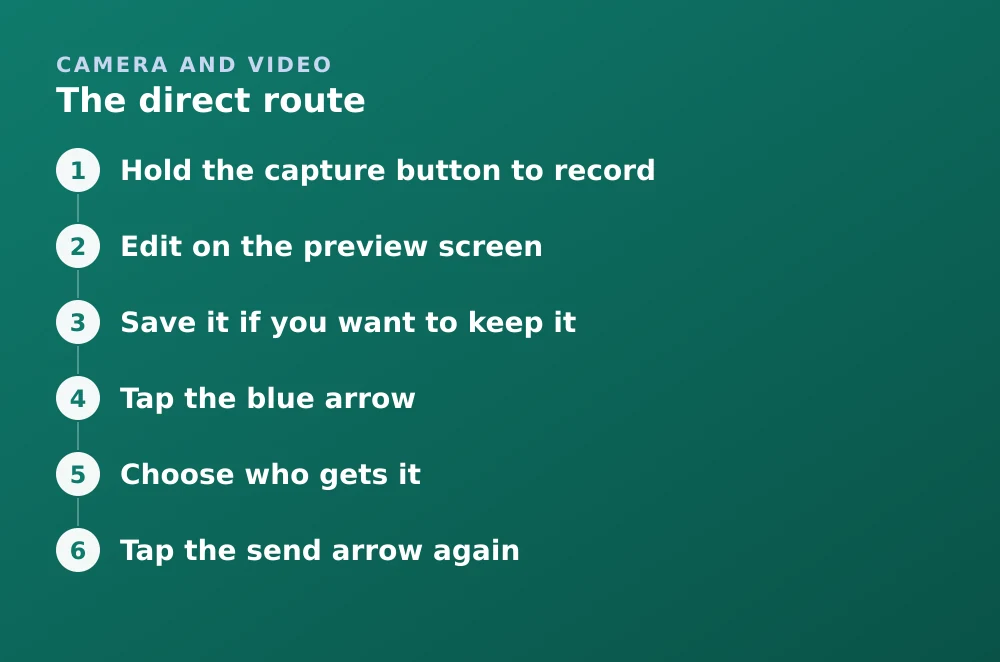
- Hold the capture button to recordA tap takes a photo instead. The full mechanics are in recording video on Snapchat.
- Edit on the preview screenTrim, caption, mute. None of this is possible after sending.
- Save it if you want to keep itThe download arrow, bottom-left. Sending does not save.
- Tap the blue arrowBottom-right. This opens the recipient list.
- Choose who gets itIndividual friends, groups, My Story, or a private story. You can pick several at once.
- Tap the send arrow againConfirms and sends. The chat shows a red or purple arrow depending on whether it was a photo or a video snap.
Sending a video from your camera roll
Sending a clip you just shot is easy. Sending one already sitting on your phone is the part people struggle with, because it is not on the Camera screen where you would expect it. Imported media goes through Memories instead.
The import route
- Open MemoriesSwipe up from the Camera screen, or tap the cards icon below the shutter button.
- Switch to the Camera Roll tabMemories has separate tabs for Snaps, Stories and Camera Roll.
- Tap the video you wantPress and hold to select several.
- Tap the send arrowChoose recipients as normal.
- Trim if it is longYou are asked to select the portion to send if it exceeds the per-snap length.
| Recorded in app | Imported from camera roll | |
|---|---|---|
| Where you start | Camera screen | Memories → Camera Roll |
| Visible marker to recipient | None | Yes — shows it was imported |
| Quality | Encoded once | Encoded twice — visibly worse |
| Length handling | Splits into segments | You choose a portion to send |
| Filters and lenses | Full range | Limited — most lenses need a live camera |
Sending video in a chat instead of as a snap
A snap and a chat attachment behave differently, and the difference decides whether the video survives being viewed.
- As a snap — plays once, then disappears. Replay is limited. Screenshots notify you.
- As a chat attachment — sits in the conversation, can be replayed, and can be saved by either side.
- In a group chat — behaves as a chat attachment, visible to everyone in the group.
To send into a chat, open the conversation first and use the camera button inside it rather than starting from the Camera screen. What either side can then do with it is covered in saving and unsaving messages.
Why the quality drops
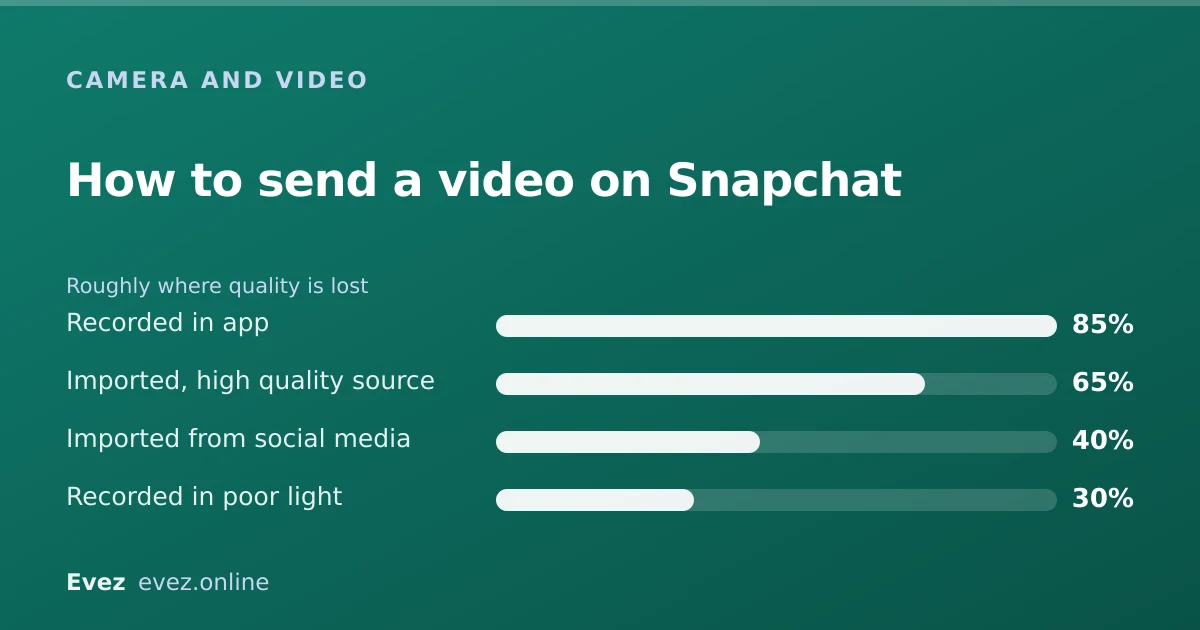
Snapchat re-encodes every video it sends so transfers stay small and fast on a poor connection. There is no quality setting, and no way to send an original file untouched.
- Record in the app where possible — one encode instead of two.
- Record in good light. This makes more difference than anything else; compression handles a clean image far better than a noisy one.
- Send over Wi-Fi. Snapchat adapts to available bandwidth, so a weak connection produces a worse result.
- Do not re-import something downloaded from another app. Each round trip compounds the loss.
When sending fails
| Symptom | Usual cause |
|---|---|
| Grey arrow, stuck sending | Connection dropped — it retries automatically |
| "Failed to send. Tap to retry" | Weak connection, or the file is too large |
| Video will not import | Unsupported format or codec |
| Only part of the video sends | Longer than the per-snap cap; it split into segments |
| Cannot send to one person | They removed or blocked you |
| No option to import from camera roll | Photos permission denied for Snapchat |
For saving a copy of what you sent, see saving videos on Snapchat.
Frequently asked questions
How do you send a video on Snapchat?
Hold the capture button to record, edit on the preview screen, then tap the blue arrow at the bottom right, choose your recipients and send again to confirm.
How do I send a video from my camera roll on Snapchat?
Open Memories by swiping up from the Camera screen, switch to the Camera Roll tab, select the video, and tap the send arrow. It does not go through the Camera screen.
Can people tell if I send a video from my gallery?
Yes. Imported media carries a visible marker that distinguishes it from something shot live in the app, and there is no supported way to remove it.
Why does my video look bad after sending on Snapchat?
Snapchat re-encodes every video to keep transfers small. Importing an already-compressed file means it is encoded twice, which is the biggest avoidable cause. Recording in the app and in good light helps most.
Sources
Every source below was checked and returned a valid response at the time of the last review. Each note says which claim in this guide it supports.
- How do I send photos or videos from my Camera Roll? — Snapchat SupportSupports: The Memories → Camera Roll import route and how imported media is handled.
- How do I import Snaps from my Camera Roll into Memories? — Snapchat SupportSupports: That camera roll media enters Snapchat through Memories rather than the Camera screen.
- When I save a Snap in Chat, where is it stored? — Snapchat SupportSupports: The difference in behaviour between a snap and a chat attachment.
Related guides

How to record a video on Snapchat
Recording a video snap end to end, plus the real numbers: the per-snap length cap, how longer recordings split, and what changes for Memories.
Camera and video · Updated

How to send a snap from your camera roll
Importing photos and videos from your gallery, the marker that tells recipients it was imported, and how View Once behaves with imported media.
Camera and video · Updated

How to save videos on Snapchat
Saving a video before you send it, saving from Memories, saving a video someone sent you, and where the line sits on saving other people's snaps.
Memories and storage · Updated