How to save snaps to your camera roll
The short answer
Change it once and every future save follows: Settings, then Memories, then Save Button, then Memories & Camera Roll. For snaps already saved, select them in Memories and tap export.
Key takeaways
- The default is Memories only, which is why the download arrow seems to do nothing.
- One setting change applies to every future save — you do not need to do it per snap.
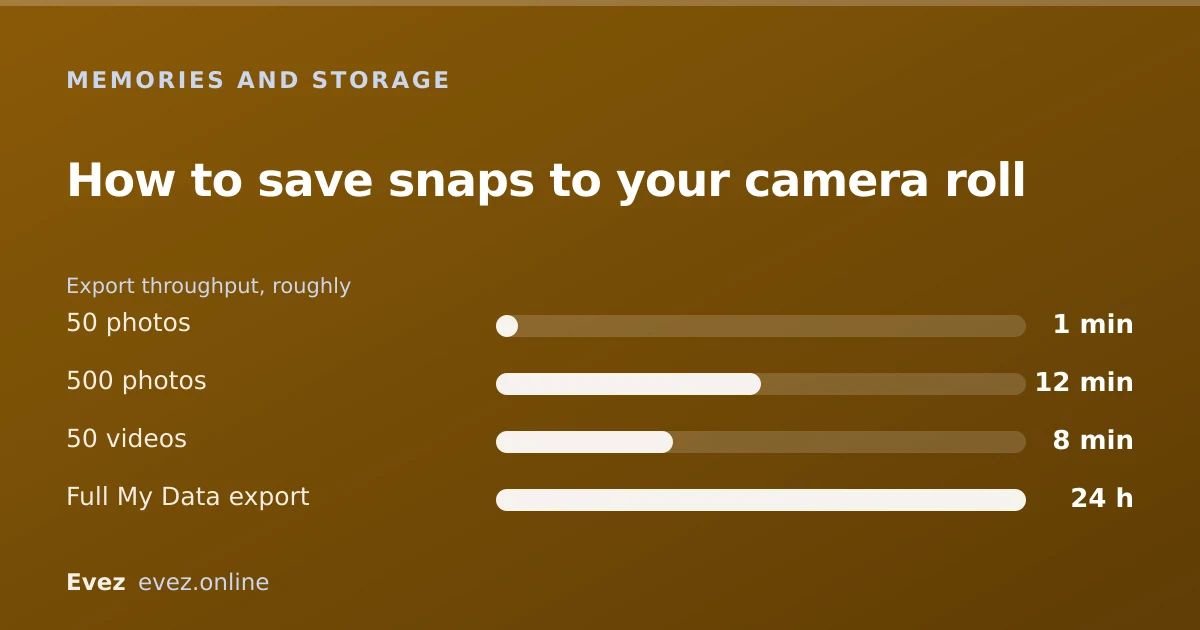
- Bulk export from Memories works in batches; large ones need Wi-Fi and patience.
- The full-archive route is the My Data export, not the in-app selection.
On this page
Change the setting once
Almost everyone asking this has already found the download arrow and tapped it. The problem is not the button. The button obeys a setting that defaults to Memories only, so the snap does save, just not where you were looking for it. Change the setting and it starts doing what you expected all along.
Setting the save destination
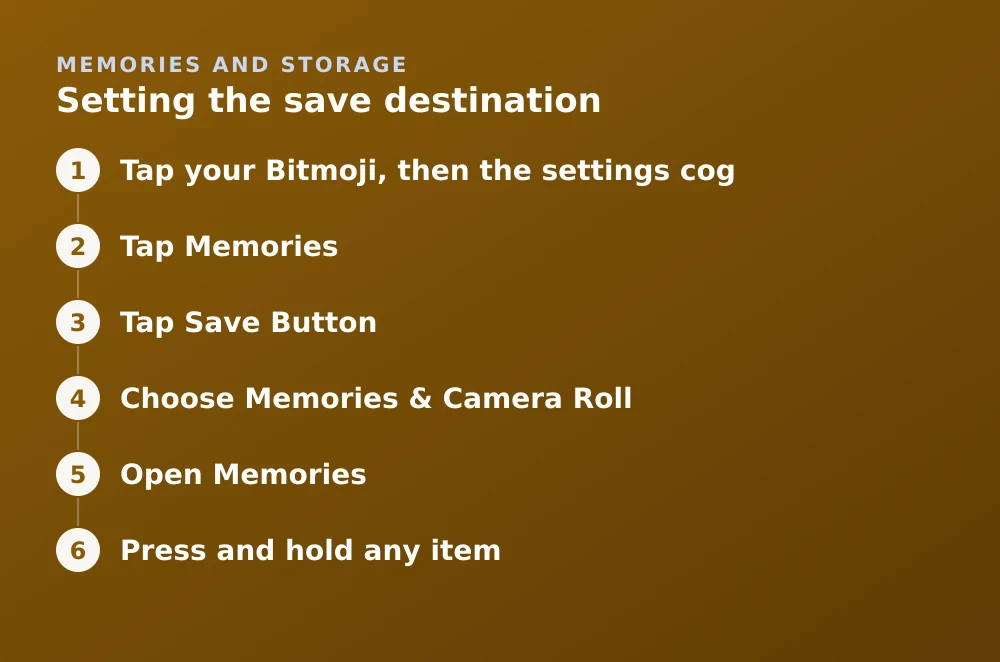
- Tap your Bitmoji, then the settings cogThe main settings list.
- Tap MemoriesUnder the Additional Services or account section, depending on version.
- Tap Save ButtonOr "Save Destination" in some versions.
- Choose Memories & Camera RollNow every save writes to both. Choose Camera Roll Only if you would rather nothing counted toward your Memories storage.
| Setting | Uses Memories storage | On your phone | Survives losing the phone |
|---|---|---|---|
| Memories | Yes | No | Yes |
| Memories & Camera Roll | Yes | Yes | Yes |
| Camera Roll Only | No | Yes | No |
Exporting what is already in Memories
Batch export
- Open MemoriesSwipe up from the Camera screen, or tap the cards icon.
- Press and hold any itemThis enters multi-select. Now tap everything else you want.
- Use Select All where offeredSome versions offer it per date group, which is faster than tapping individually.
- Tap the export icon, then DownloadNot Share — Share hands the file to another app rather than saving it.
- Work in batches of 50–100Larger batches time out. Videos are much slower than photos.
- Stay on Wi-FiA failed export over mobile data can appear to succeed and silently drop items.
Stopping Snapchat filling your camera roll
The reverse problem is just as common: every snap you take is duplicating into your photo library, burying real photos under filtered selfies.
- Set the save destination back to Memories only. Future saves stop writing to the phone.
- In iOS, Photos → Albums → Snapchat holds what has already been written. Deleting the album's contents does not affect Memories.
- On Android, the Snapchat folder in your gallery is the equivalent.
- If Snapchat photos are cluttering iCloud, remember iCloud Photos syncs deletions — removing them on one device removes them everywhere.
What does not transfer
An exported snap is a flat image or video file. Everything Snapchat layered on top is baked in or dropped, and it is worth knowing which before you delete the originals.
| Element | In the exported file |
|---|---|
| Filters, lenses, stickers, text | Baked into the image — permanent |
| Original unedited version | Not included |
| Date the snap was taken | Preserved in metadata |
| Location, if it was attached | Usually preserved |
| Who it was sent to | Not included |
| Story replies and reactions | Not included |
If exports keep failing
- Check the photo permission. Snapchat needs write access to your photo library; on iOS, "Limited" access silently breaks bulk export. Set it to All Photos.
- Check free space. Exporting a large archive needs room for it. Free up space first — see reducing Snapchat's footprint.
- Clear the cache. Stuck thumbnails can block selection. Clearing cache is safe and cannot delete Memories.
- Try smaller batches. Fifty at a time succeeds where five hundred silently drops items.
Frequently asked questions
Why do my saved snaps not appear in my camera roll?
Because the save destination defaults to Memories only. Change it under Settings → Memories → Save Button to Memories & Camera Roll, and future saves will write to your phone as well.
How do I download all my Snapchat Memories to my phone?
For a few hundred items, press and hold in Memories to multi-select and export in batches on Wi-Fi. For a complete archive, request a My Data export from accounts.snapchat.com and tick the option to include Memories media.
How do I stop Snapchat saving photos to my camera roll?
Set the save destination back to Memories only. Photos already written stay in the Snapchat album in your gallery, and deleting them from there does not affect what is in Memories.
Do exported snaps keep their filters and stickers?
Yes, permanently. Snapchat exports the composited image, so filters, lenses, stickers and text are baked in. There is no way to retrieve the original unedited version.
Sources
Every source below was checked and returned a valid response at the time of the last review. Each note says which claim in this guide it supports.
- How do I save a Snap to Memories and Camera Roll? — Snapchat SupportSupports: The Save Button setting and its three destination options.
- How do I find Snaps that I saved to my Memories? — Snapchat SupportSupports: Navigating and selecting within Memories, including multi-select.
- How do I make sure my Memories are backed up? — Snapchat SupportSupports: The difference between device-stored and account-synced content used in the destination table.
Related guides

How to save videos on Snapchat
Saving a video before you send it, saving from Memories, saving a video someone sent you, and where the line sits on saving other people's snaps.
Memories and storage · Updated

Is Snapchat deleting Memories?
Snapchat introduced a storage limit on Memories with paid tiers above it. What that means for existing archives, and how to export everything first.
Memories and storage · Updated

Why Snapchat takes up so much storage
Where the gigabytes actually go, and a numbered plan to get Snapchat back under a gigabyte without losing anything.
Memories and storage · Updated