How to use Snapchat
The short answer
Snapchat opens on the camera, and everything else is a swipe away: Map left, Chat right, Stories and Spotlight further right. Tap to photograph, hold to record, then tap the arrow to pick who gets it.
Key takeaways
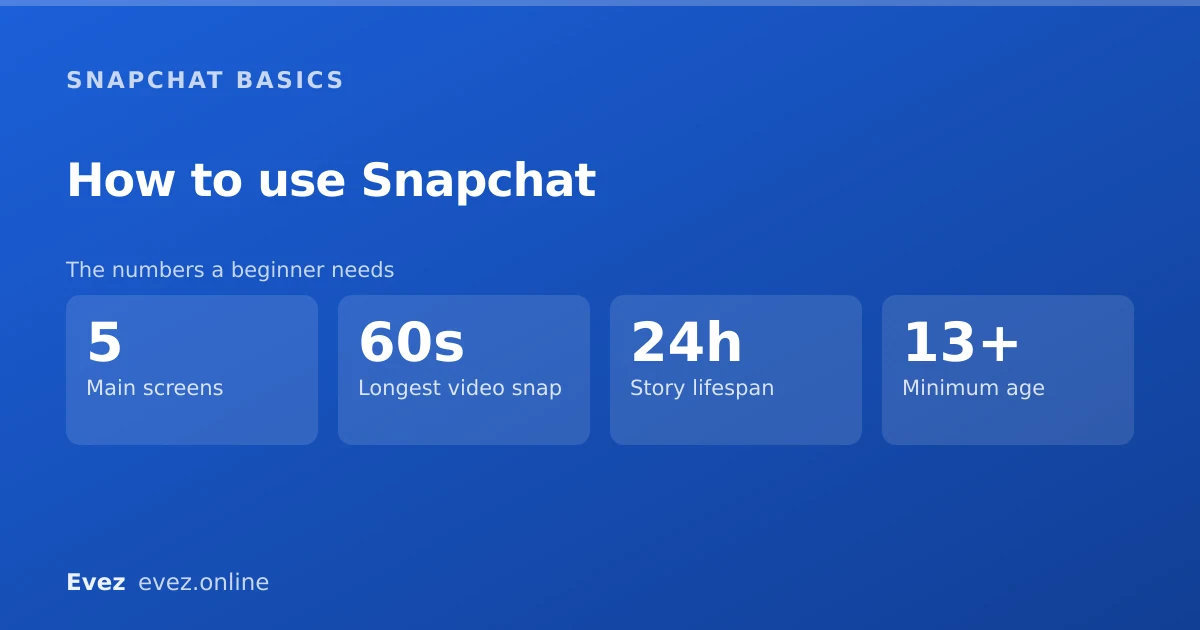
- The camera is the home screen. Swiping left and right moves between the five main screens.
- Tap the capture button for a photo, hold it for video.
- Most controls are gestures rather than buttons — hold, swipe and pinch do the work.
- Change the four privacy settings listed below before you add anyone.
On this page
Why Snapchat feels confusing
Snapchat is the app people feel a bit embarrassed about not understanding, and they really should not. Most apps put a labelled tab bar at the bottom and a menu behind a hamburger icon. Snapchat hides almost everything behind swipes and long presses, and labels very little. That was a deliberate choice from an era when the app was aimed squarely at teenagers who would work it out, and it has never really been undone.
The good news is that there are only five screens. Once you know what is on each and how to move between them, the rest is detail.
The five screens
| Screen | How to get there | What it is for |
|---|---|---|
| Snap Map | Swipe right, or tap the pin icon top-left | Where friends are, and public snaps by place |
| Chat | Swipe right once from the camera | Conversations, calls and group chats |
| Camera | The home screen | Taking and sending snaps |
| Stories | Swipe left once | Friends' stories and your own |
| Spotlight | Swipe left twice | Public short-form video from strangers |
Sending your first snap
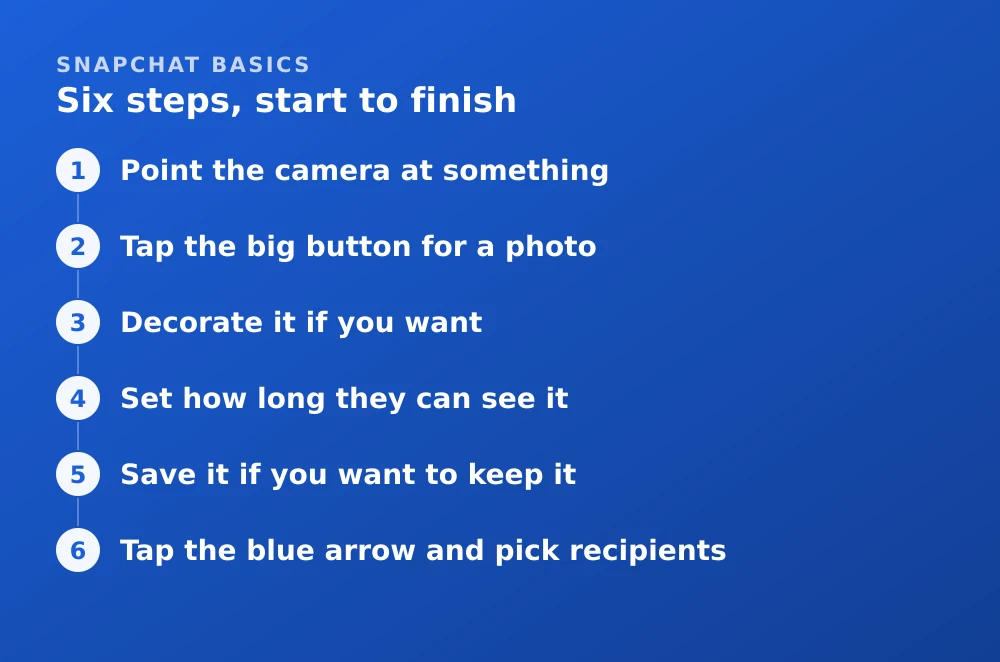
Six steps, start to finish
- Point the camera at somethingDouble-tap anywhere to switch between front and rear cameras.
- Tap the big button for a photoHold it instead to record video, up to 60 seconds — see recording video.
- Decorate it if you wantThe tools run down the right-hand side: T for text, the pencil to draw, the sticky note for stickers, the scissors to cut something out.
- Set how long they can see itThe timer icon sets a duration for photo snaps. This is the thing Snapchat is famous for and it is easy to miss.
- Save it if you want to keep itThe download arrow, bottom-left. Sending does not save — this catches out almost everyone at first.
- Tap the blue arrow and pick recipientsIndividual friends, a group, or My Story. Tap the arrow again to send.
What the icons in chat mean
Snapchat communicates status entirely through small coloured shapes, with no text anywhere. The colours encode the content type and the shapes encode the state.
| Icon | Meaning |
|---|---|
| Filled red arrow | You sent a photo snap; not opened yet |
| Filled purple arrow | You sent a video snap; not opened yet |
| Filled blue arrow | You sent a chat message; not read yet |
| Hollow arrow | They have opened or read it |
| Filled red or purple square | They sent you a snap you have not opened |
| Hollow square | You have opened it |
| Two arrows in a circle | It was replayed |
| Overlapping squares | It was screenshotted |
Filled means unopened, hollow means opened. Red is photo, purple is video, blue is text. That is the whole system.
Settings worth changing today
Snapchat's defaults are reasonable but not private. Four changes take about two minutes and prevent most of the problems people write in about later. All of them are under your profile: tap your Bitmoji, then the settings cog.
The day-one checklist
- Turn on Ghost ModeMap settings → Ghost Mode. Your location is shared with friends by default once you enable the Map. Details in the location guide.
- Set Contact Me to My FriendsSettings → Who Can… → Contact Me. Stops strangers messaging you.
- Set View My Story to My FriendsSame menu. Or narrow it further with a private story.
- Turn on Auto-Save My StorySettings → Memories. Otherwise stories vanish after 24 hours with no copy — see viewing old stories.
- Turn on two-factor authenticationSettings → Two-Factor Authentication. Snapchat accounts are a common target and this is the single most effective protection.
Gestures worth knowing
- Double-tap anywhere on the camera to flip between front and rear.
- Press and hold your face to open the lens carousel.
- Pinch to zoom while recording, or hold the capture button and slide up.
- Swipe left or right on a finished snap to cycle through filters and speed modifiers.
- Press and hold a chat message to save, copy, reply or delete it.
- Swipe down from the camera to open your profile.
What to ignore at first
Snapchat has accumulated a lot of surface area, and very little of it matters when you are starting out.
- Snapscore. A number that goes up when you send and receive. It measures activity, not anything about you.
- Streaks. A count of consecutive days you and a friend have exchanged snaps. Fun, and a genuine source of obligation. You can ignore them entirely.
- Spotlight. Public short-form video. It is a separate product bolted onto the side.
- Snapchat+. A subscription adding cosmetic features. Nothing in the core experience requires it, and it does not verify you.
- My AI. A chatbot pinned to your chat list. It can be unpinned — see turning off My AI.
The friend emoji that appear beside names once you have been talking to someone are worth understanding eventually, and are covered in the friend emoji guide.
Frequently asked questions
How do you use Snapchat for the first time?
The camera is the home screen. Tap the big button for a photo or hold it for video, decorate it with the tools down the right side, then tap the blue arrow to choose recipients. Swipe left and right to reach the other four screens.
What do the colours in Snapchat chat mean?
Red means a photo snap, purple a video snap, and blue a text message. A filled icon means it has not been opened yet; a hollow one means it has.
Is Snapchat free to use?
Yes. The app and all core messaging are free. Snapchat+ is an optional subscription for cosmetic extras, and Memories storage above the free allowance is now a paid tier.
Does Snapchat share my location by default?
Once you enable Snap Map, your location is shared with mutual friends. Turning on Ghost Mode in Map settings hides you, and revoking the permission in your phone's settings stops collection entirely.
Sources
Every source below was checked and returned a valid response at the time of the last review. Each note says which claim in this guide it supports.
- About Profiles on Snapchat — Snapchat SupportSupports: The profile screen and where the settings described in the day-one checklist live.
- How can I change who can see My Story on Snapchat? — Snapchat SupportSupports: The Who Can… settings recommended in the day-one checklist.
- Snap Inc. Terms of Service — Snap Inc.Supports: The minimum age of 13 stated in the figures panel.
Related guides

What does the sunglasses emoji mean on Snapchat?
The 😎 face means you share a close friend with someone. A full reference for every friend emoji, how to change them, and why yours may differ.
Snapchat basics · Updated

What does followers mean on Snapchat?
Followers are one-directional and separate from friends. A precise table of what each side can see, and why your two numbers do not match.
Snapchat basics · Updated
Snapchat Ghost Mode and turning your location off
Three different settings all look like turning location off on Snapchat. Only one of them actually stops your phone reporting where you are.
Privacy and location · Updated